Back in my FreeBSD days I tried hard to get samba working so my windows boxes could see and share files with the nix ones... ya I never got it working.... Today I have a better understanding of how samba works and I am able to setup shares without having to flip out, sweat like crazy and storm off in a fit to go smoke a cig.
On Ubuntu samba is installed as part of the default installation, All you have to do is point it to its shares (where you want to put and have windows see files) and setup a user account so you can access your shares.
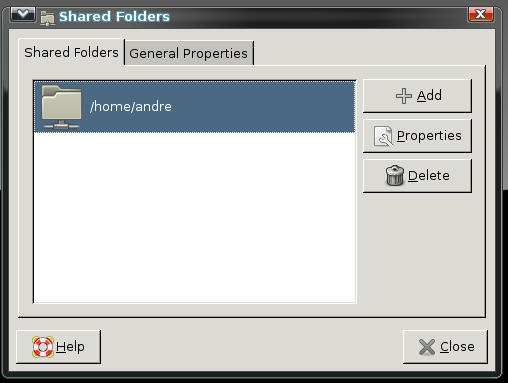
1) System>Administration>Shared Folders
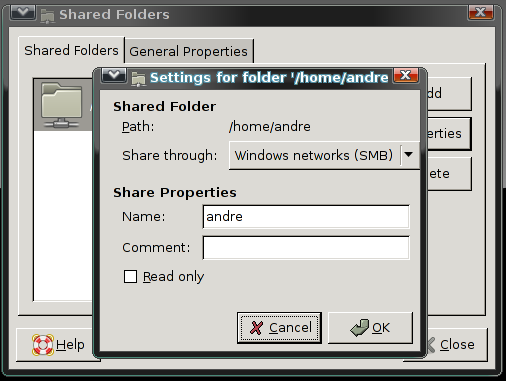
2) Click Add> Select the path > Share Name & Comment>Uncheck Read only (if you want to be able to write/delete from your windows pcs> Click Ok.
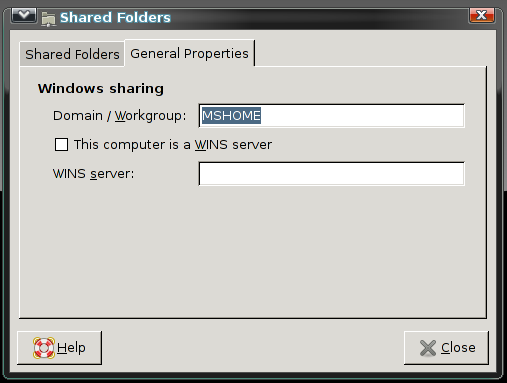
3) Under General Properties > Enter Correct domain/workgroup and click ok.
After you have selected your shares, in the terminal type:
sudo smbpasswd -a "username" (without the "s) to add a user account.
If you some how happen to forget you can remove and readd the user by doing this
sudo smbpasswd -x "username" then readd the user with the command above.
After you add the shares and user account you will need to start the samba daemon do it by entering this command:
sudo /etc/init.d/samba restart (at which point it will tell you that the daemon is restarting)
you should now be able to see and access your shares from windows or another samba capable linux or BSD machine.
Other useful samba commands are:
Start Daemon: sudo /etc/init.d/samba start
Stop Daemon: sudo /etc/init.d/samba stop
* Note that if you need to edit the smb.conf manually you can do it by entering this command:
sudo gedit /etc/samba/smb.conf

Wednesday, November 7, 2007


Tuesday, November 6, 2007
Trapping Crtl+Alt+Del
In some versions of ubuntu Crtl+Alt+Del doesn't work by default so to enable it you will need to do the following:
1) alt+F2 (run cmd) > gconf-editor
2) once the editor is open go to Apps>Metacity>Global Keybinds>Command_1 , right click and select edit value then type inDelete
3)Keybinding Commands > Command_1 in "value" type gnome-system-monitor.
4) Test & smile yaaay :-)
1) alt+F2 (run cmd) > gconf-editor
2) once the editor is open go to Apps>Metacity>Global Keybinds>Command_1 , right click and select edit value then type in
3)Keybinding Commands > Command_1 in "value" type gnome-system-monitor.
4) Test & smile yaaay :-)
Monday, November 5, 2007
Setting the Root password
I came from BSD beginings as I stated in one of my earlier posts so I am used to type SU to gain privalidges to make changes that I can't do as a normal user, so the whole "sudo" thing was a lil weird for me and when I typed "su" it asked me for a pass but I hadn't set one so heres how you set a root password.
$ sudo passwd root
Then enter your desired password (different from a normal user account) , the whole point of sudo is to keep people from being logged in as root all the time but need to sudo all the time which is slightly annoying BUT it is deactivated by default for security reasons.
While I am configuring the system is the only time I will use the SU command, NEVER stayed logged in (type exit to quit being a superuser) as you can cause a tremendous amount of damage if you enter the wrong command or you walk away and someone starts playing around where the shouldn't be.
You can also gain "root" by typing: $ sudo -i whichever you choose to use remember to exit and return to a normal user after you have completed your tasks.
IF you forget your password , restart in safemode and in terminal type "passwd" and set a new one.
$ sudo passwd root
Then enter your desired password (different from a normal user account) , the whole point of sudo is to keep people from being logged in as root all the time but need to sudo all the time which is slightly annoying BUT it is deactivated by default for security reasons.
While I am configuring the system is the only time I will use the SU command, NEVER stayed logged in (type exit to quit being a superuser) as you can cause a tremendous amount of damage if you enter the wrong command or you walk away and someone starts playing around where the shouldn't be.
You can also gain "root" by typing: $ sudo -i whichever you choose to use remember to exit and return to a normal user after you have completed your tasks.
IF you forget your password , restart in safemode and in terminal type "passwd" and set a new one.
Conky
I kept on seeing screenshots of what appeared to be a read out of whats going on with the sytem so I looked it up, seems the program is called conky which turned out to be a system monitor similar to gKrellm but in my opinion better.
I installed it ( sudo apt-get install conky) and searched on Ubuntuforums to see what other people have done.
I made my own .conkyrc file based on the ones in the thread.
I installed it ( sudo apt-get install conky) and searched on Ubuntuforums to see what other people have done.
I made my own .conkyrc file based on the ones in the thread.
* Note: If you are running 7.04 or below you will need to manually add the no flicker fix to keep conky from disappearing when it updates.
Sudo gedit /etc/X11/xorg.conf
> Under section "module" Add > Load "dbe"
To finish up this install if you would like conky to start when Gnome starts you will have to add it to the start up list.
Goto System >Preferrences>Sessions then add the custom command "conky" then you are done. to restart X Crtl+Alt+Backspace.
Subscribe to:
Posts (Atom)